

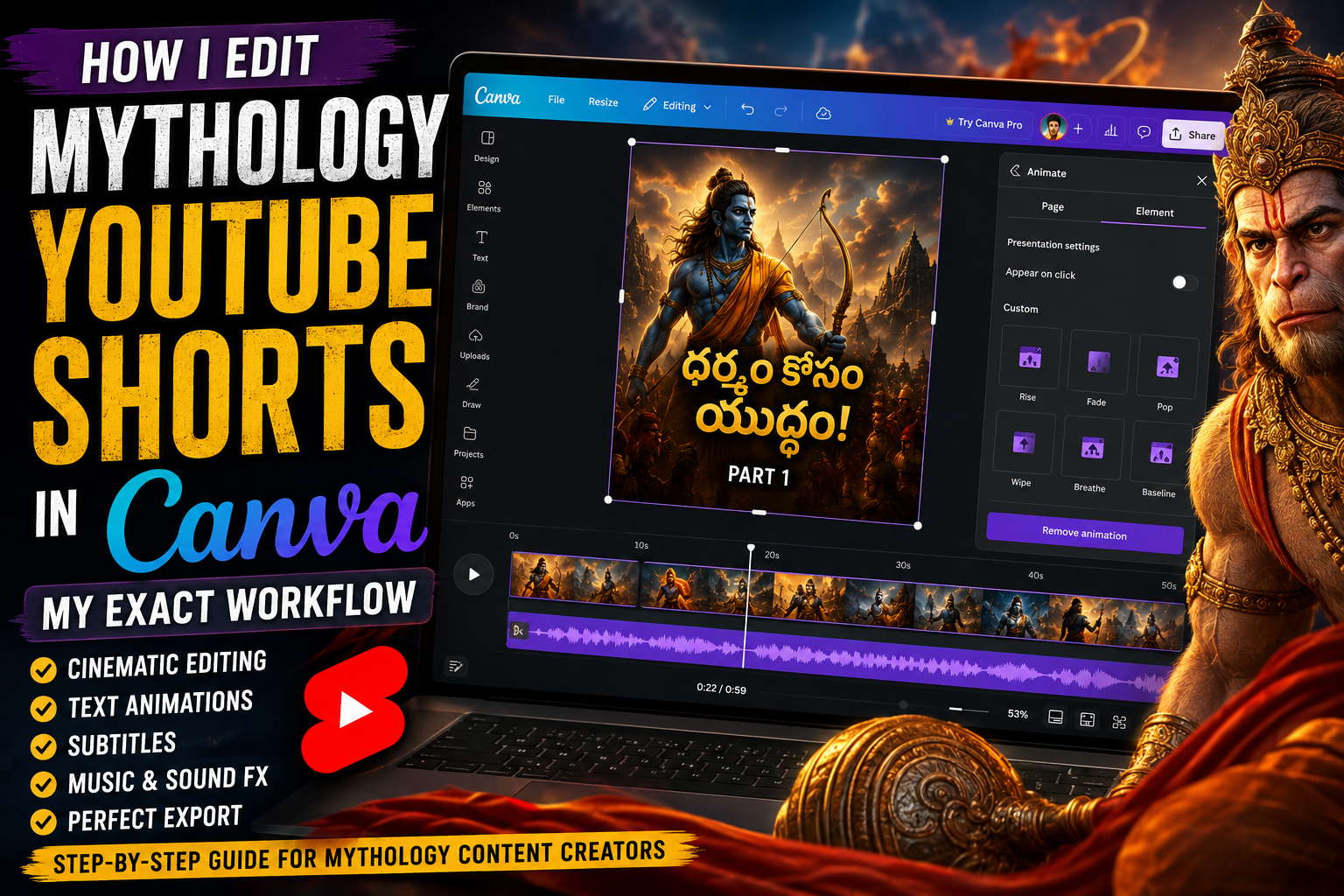
If you create mythology YouTube Shorts, you already know one big challenge: making videos look cinematic and professional without spending hours editing.
How I Edit Mythology YouTube Shorts in Canva When I started creating mythology Shorts for YouTube, I wanted a workflow that was simple, repeatable, and visually powerful. After experimenting with narration, subtitles, AI mythology images, and Canva editing, I created a workflow that saves time and improves storytelling.
In this post, I will show you exactly how I edit mythology YouTube Shorts in Canva using my exact workflow.
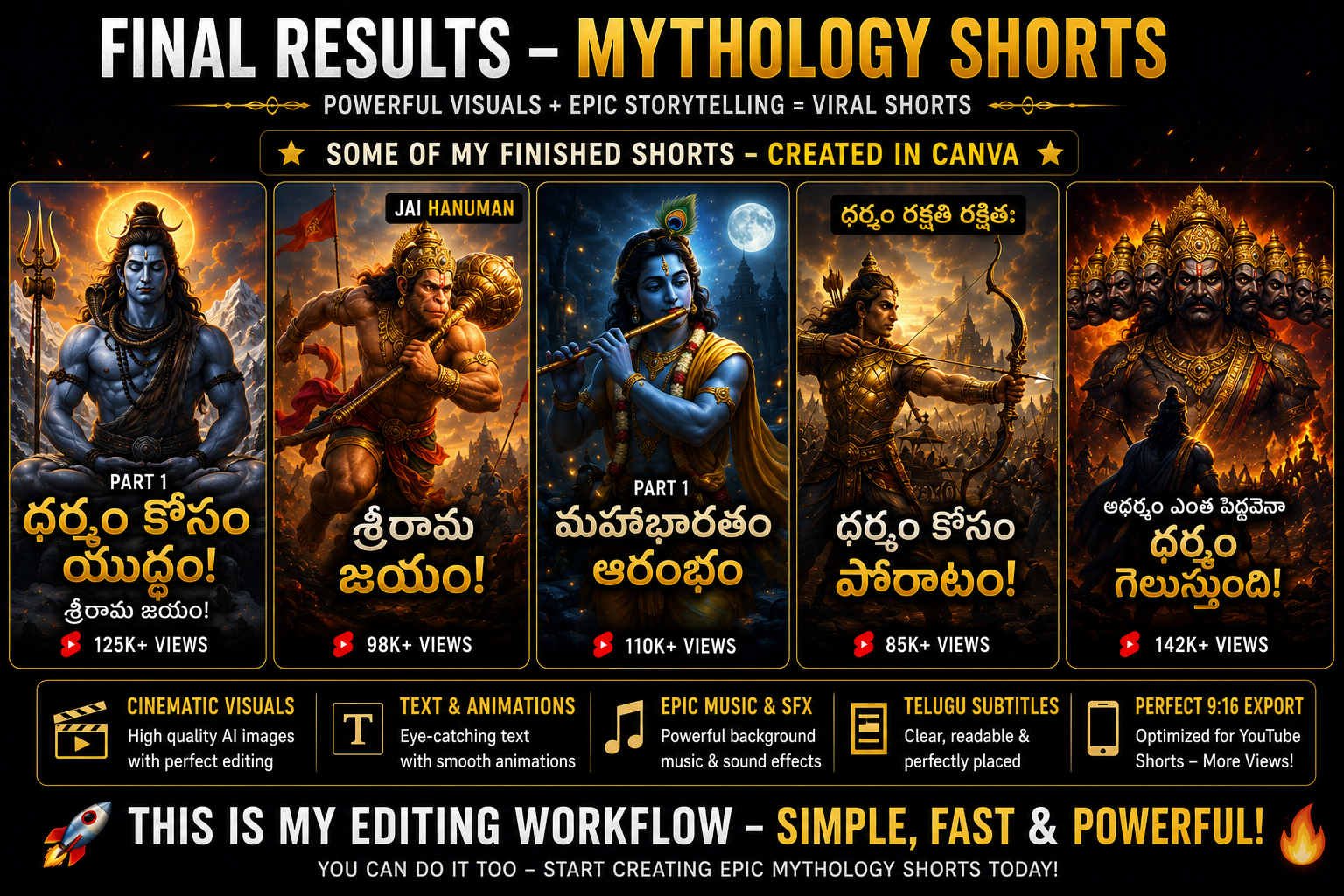
Watch My Mythology YouTube Shorts Examples
These Shorts use the same Canva editing workflow explained in this article.
Why Canva Is Perfect for Mythology YouTube Shorts
Many creators think mythology editing requires expensive software.
But Canva works surprisingly well for mythology Shorts because it is:
- Beginner-friendly
- Fast for short-form editing
- Easy for subtitle placement
- Great for cinematic transitions
- Simple for vertical 9:16 editing
If your goal is consistency and faster publishing, Canva can save a lot of time.
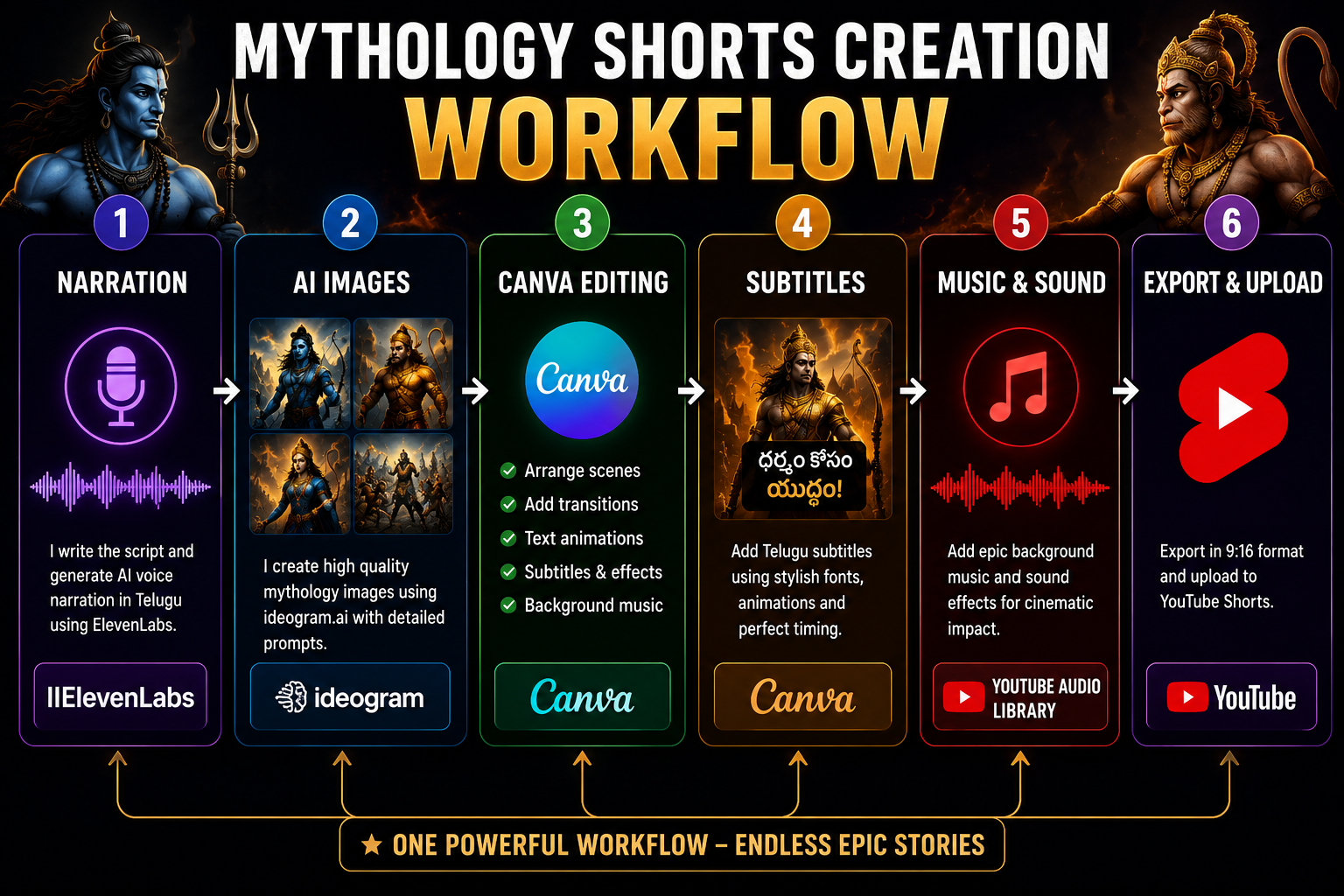
My Exact Mythology Shorts Workflow
My workflow is simple:
Narration → AI Images → Canva Editing → Telugu Subtitles → Background Music → Final Export
Instead of randomly editing scenes, I follow a system.
This helps me create mythology Shorts faster while keeping visuals cinematic.
Step 1: Prepare Everything Before Editing
Before opening Canva, I prepare all my content first.
This includes:
- AI mythology images
- Voice narration
- Background music
- Sound effects
- Telugu subtitles
Keeping everything ready before editing saves a lot of time later.
I usually organize files into folders so the workflow stays clean.
Step 2: Canva Editing Setup
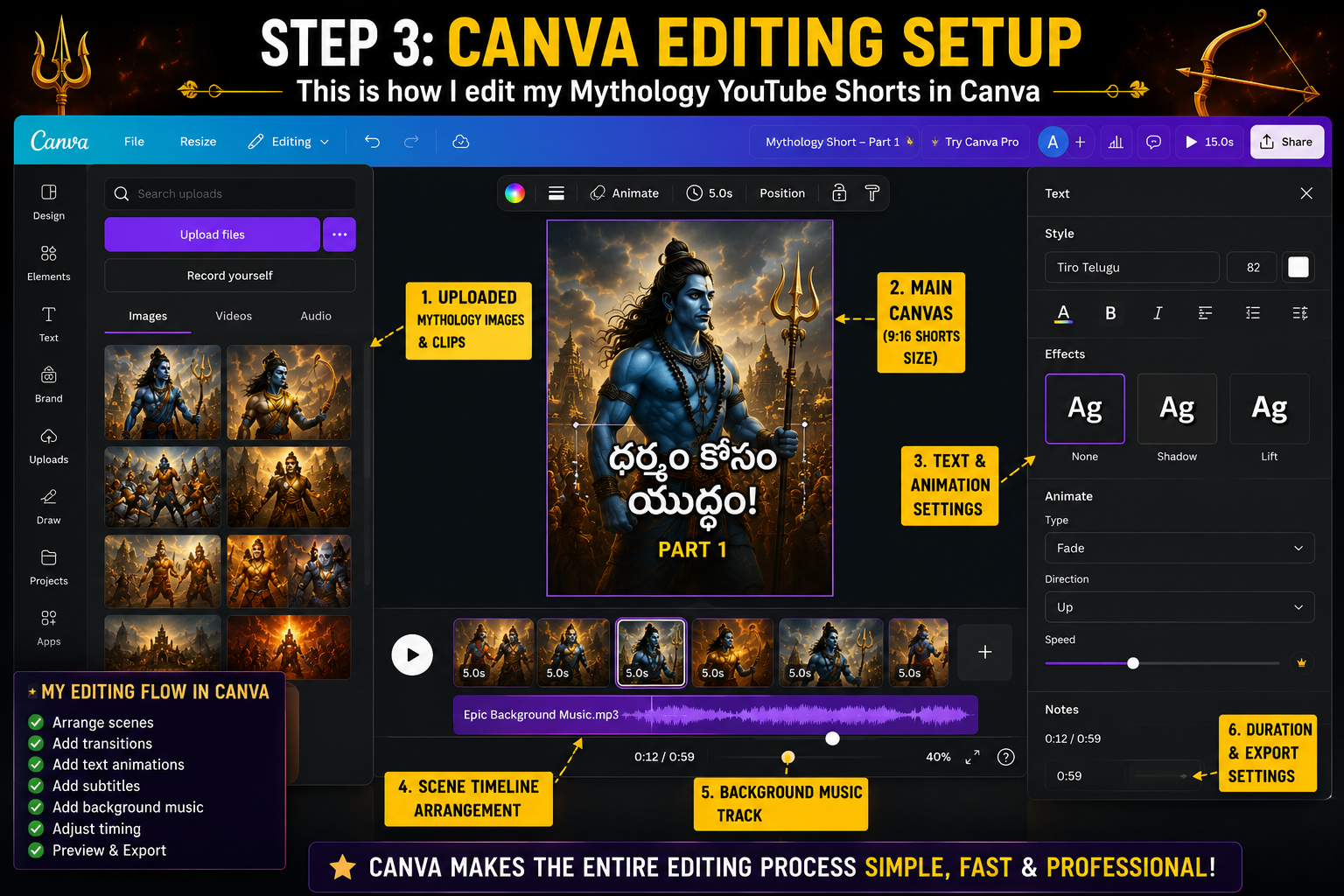
Inside Canva, I start with the Mobile Video (9:16) format because YouTube Shorts are vertical videos.
Then I:
- Import narration audio
- Upload mythology images
- Arrange scenes in order
- Adjust image timing
At this stage, the goal is to match visuals with narration.
Strong visual storytelling improves retention significantly.
Step 3: Scene Timing and Transitions
This is where mythology Shorts become cinematic.
I carefully adjust scene duration based on narration.
For emotional scenes, I slow things down.
For war or action scenes, I use faster cuts.
My favorite Canva transitions include:
- Fade
- Cross dissolve
- Match & Move
- Zoom effects
These transitions help create a movie-like feeling.
Before vs After Editing
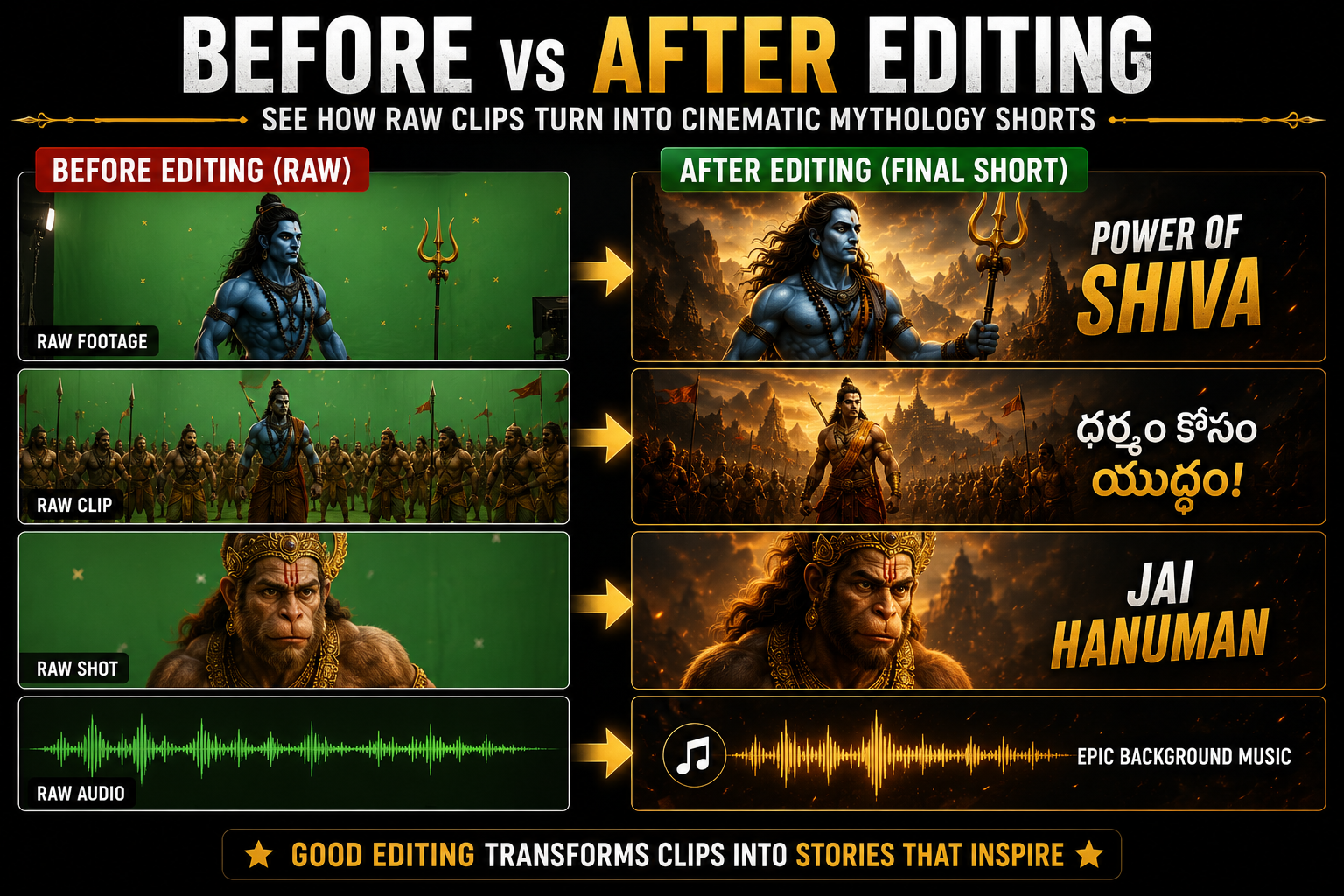
Here is something I learned quickly.
Raw mythology visuals often look flat.
But once transitions, subtitles, zoom effects, and music are added, the final Short feels much more engaging.
Small editing improvements make a big difference.
Step 4: Telugu Subtitle Workflow
Subtitles are extremely important for Shorts.
Many viewers watch videos without sound.
I usually place Telugu subtitles at the bottom center of the screen.
For readability, I use:
- Bold Telugu fonts
- Good contrast
- Simple animation
- Perfect subtitle timing
Even basic subtitle styling can improve engagement.
Step 5: Music and Cinematic Feel
Background music changes the emotional impact of mythology storytelling.
For example:
- War scenes → Powerful cinematic music
- Emotional scenes → Soft emotional music
- Divine scenes → Spiritual atmosphere
One important rule:
Never let music overpower narration.
The voice should always stay clear.
Canva Editing Tips
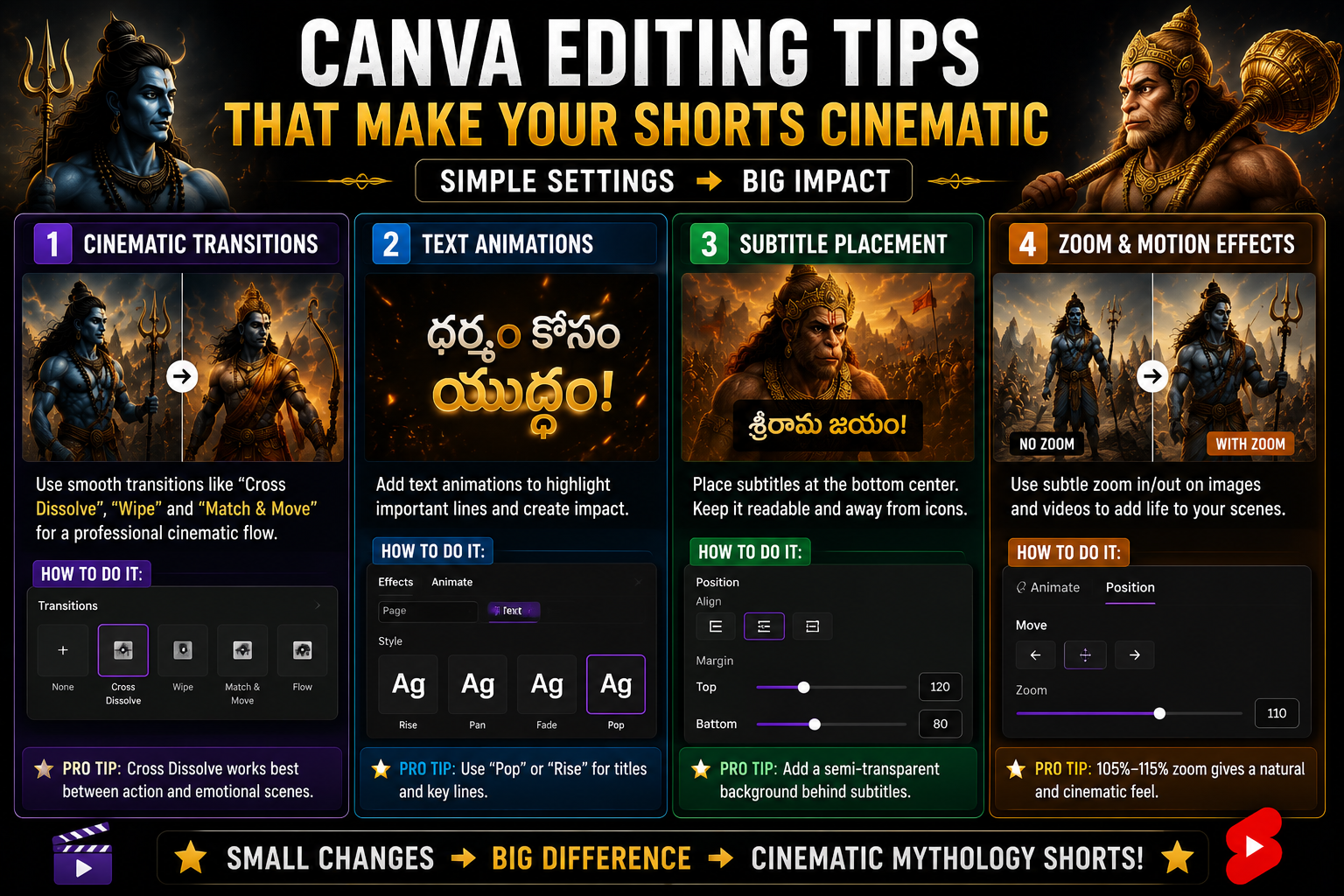
Here are a few editing tips that improved my mythology Shorts:
- Keep scenes short and engaging
- Match visuals with narration emotion
- Use cinematic zooms carefully
- Keep subtitles readable
- Use smooth transitions
- Review final pacing before export
Step 6: Final Review and Export
Before exporting, I always check:
- Subtitle timing
- Music balance
- Scene pacing
- Image timing
- Visual consistency
Then I export in:
1080 × 1920 Full HD vertical format
This works perfectly for YouTube Shorts.
Image Showcase
Related Tutorials
- How I Created a Ramayana Part 1 AI Video for YouTube Using Canva, AI Voice & Cinematic Prompts
- How I Create AI Narration for Mythology YouTube Shorts in Telugu
- How I Create Telugu Subtitles for Mythology YouTube Shorts Using Canva and AI
- How I Create AI Mythology Images for YouTube Videos Using Cinematic Prompts
Frequently Asked Questions
Is Canva good for mythology YouTube Shorts?
Yes. Canva is simple, fast, and works surprisingly well for mythology Shorts editing.
What Canva format should I use?
Use Mobile Video 9:16 format for YouTube Shorts.
How long should mythology Shorts be?
Usually between 30 to 60 seconds depending on story pacing.
Do subtitles improve retention?
Yes. Many viewers watch Shorts without sound, so subtitles help significantly.
Verdict
If you want to create cinematic mythology Shorts consistently, Canva is one of the easiest workflows available.
You do not need expensive editing software.
You simply need a repeatable process:
Narration → AI Images → Canva Editing → Subtitles → Music → Export
Once you master this workflow, creating mythology Shorts becomes much faster and more professional.